Options. File Transfer settings
The options on the Transfer tab of the Options dialog box are related to File Transfer and here you can enable the ability to exchange files and directories for users and specify how long to store offline files on the server.
To open the Options dialog box click the  button on the toolbar or select the "Tools\Options..." item from the main menu or use the Ctrl+O hotkey.
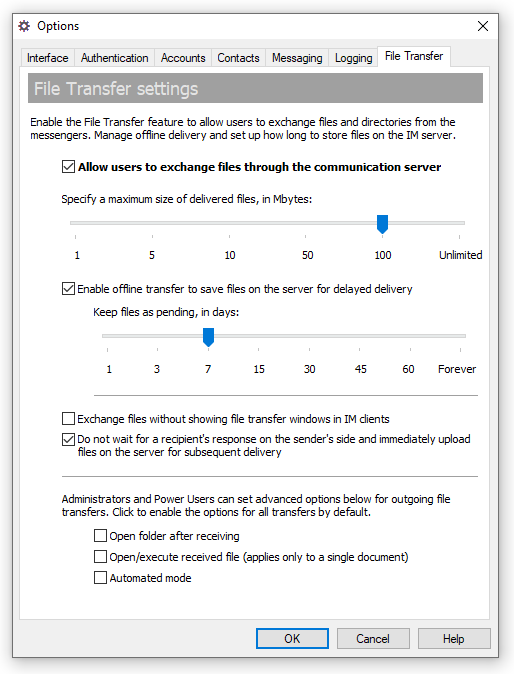 |
| File Transfer settings |
- "Allow users to send and receive files through the communication server" — Check this box to enable File Transfer and allow users to send files to others. Then set the maximum allowed size of delivered files (in megabytes) that users can send.
- "Enable offline transfer to save files on the server for delayed delivery" — Use this option to allow users to save files on the IM server as offline transfers if one or more recipients are not available. Select this checkbox and set the number of days for file transfers to be stored on the server.
- "Exchange files without showing file transfer windows in IM clients" — This enables a built-in file transfer that does not show additional dialogs when files are sending/receiving in messenger apps. Receipients are not able to decline a file transfer process if this option is used.
- "Do not wait for a recipient's response when the data is being sent to online user and immediately upload files on the server for subsequent delivery" — Check this option in order to enable immediate delivery of files on the IM server instead of waiting while the data will be accepted or declined by the recipient. The option applies only if the data is sending to a single online recipient.
Please note that if files are sent to multiple users/groups simultaneously then the data is always transmitted on the communication server first in order to be delivered to recipients.
 |
After the specified pending period expires, file transfer can no longer be delivered to the recipients and are moved to the Deleted pane in the Archiving & Logging view. |
Users with Administrator and Power User account types can enable these advanced options for outgoing file transfers from messenger clients. It is possible to turn on the options by default for all transfers.
- "Open folder after receiving" — Use this option to automatically open a folder with transferred files on a recipient's computer when the transfer will be completed.
- "Open/execute received file (applies only to a single document)" — If this checkbox is used then the file will be automatically executed or opened by appropriate application on a recipient's computer. This option is ignored if multiple files and/or folders are transmitted.
- "Automated mode" — Using this option will automatically initiate the transfer process in a recipient messenger with no options to accept or decline available to a user.



 Facebook page
 Follow Us on Twitter
 YouTube channel
 Read Our News and Blog