Archiving & Logging. View archive
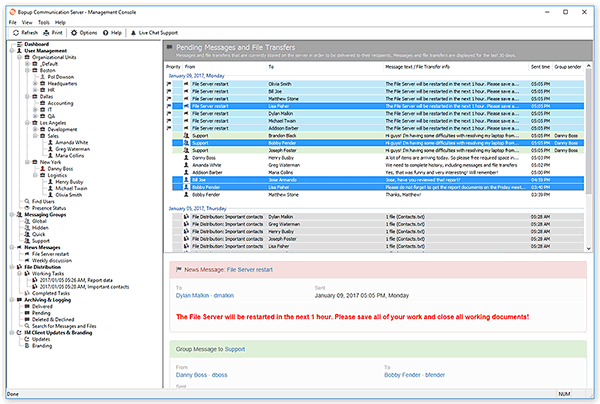
To view messages and file transfers currently stored on the server, such as Pending, Delivered (Sent), Deleted and Declined messages and files, switch to the corresponding result view from the Archiving & Logging view in the tree.
 |
| Browse the Message and File Transfer Archive |
The result view displays the list of sent messages and files. Each message is highlighted in a different color according to its type: Personal messages are default color (usually white), group messages — in green, news messages — in blue, and file transfers are highlighted in gray.
 |
The list shows messages and file transfers for the period you can specify on the Interface tab of the Options dialog box. The following periods are available for showing messages and transfers: last 1 day (today), last 3 days, last 7 days, last 15 days, last 30 days, last 45 days, last 60 days and for all time. |
Click a message or file transfer in the list to display it in the Preview pane at the bottom of the result view. Press and hold down the Ctrl key to select multiple messages/file transfers from the list.
To save the selected messages and file transfers currently displayed in the Preview pane, select File\Save As... from the main menu. Browse or type a name of the text file to which the save messages.
To print the selected messages and file transfers currently displayed in the Preview pane, select File\Print... from the main menu.
By default, the result list shows personal (user-to-user), group (Messaging Groups) and news (News Messages) messages and all file transfers that can be personal, group and distribution tasks (File Distribution). You may exclude group and/or news messages from the list. Right-click the list and clear the Show group messages" and "Show news messages" checkbox items respectively in the pop-up menu.
In order to show only deleted or declined File Transfers use appropriate checkboxes in the pop-up menu in the list. Please note that those menu items are available only in the Deleted & Declined result view.
|
You can manually move messages and file transfers to the Deleted view in the Pending result view if you decide that they should not be delivered to their recipients as offline messages and files. Right-click such a data and select Move to deleted items from the pop-up menu. |



 Facebook page
 Follow Us on Twitter
 YouTube channel
 Read Our News and Blog