Installation tips
Before the installation, make sure that the TCP/IP protocol is installed in your Network Settings. Client computers should be able to access the server computer. If you plan to organize communications via a WAN/Internet connection, make sure that the server IP address is shared and reachable from outside locations.
Since Bopup Communication Server logs and archives all message, file transfer history and user conversations, it needs a database server to store all the data. The server installation file comes in 4 setup packages: (1) a smaller setup package requires an installed Microsoft SQL Server or PostgreSQL/Postgres Pro database server running locally or on remote computer, (2) full setup package includes Microsoft SQL Server 2005 Express for both 32- and 64-bit Windows platforms can be installed together with Bopup Communication Server, (3) another that is shipped with built Microsoft SQL Server 2008 R2 Express edition, (4) and the last one with built-in Microsoft SQL Server 2014 Express edition designed to support Windows 10 and later operating systems .
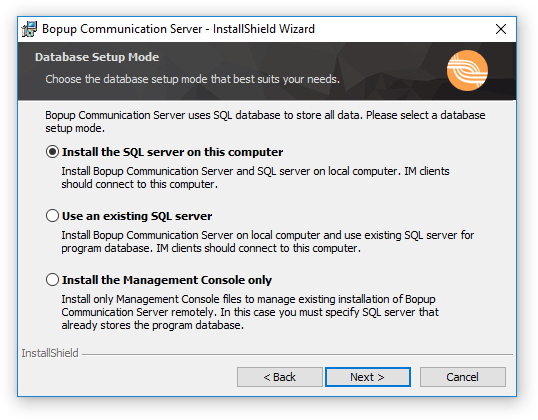 |
| Selecting how to install/use the SQL server (the full setup package) |
You can choose from 3 available installation modes:
- Install the SQL server on this computer — This is the Local Installation Mode and the most preferred way to install the IM server. Use it to install Microsoft SQL Server 2005 Express (or 2008 R2 Express or 2014 Express versions depending on the setup package) that comes with the setup package as an internal SQL server on the local computer.
- Use an existing SQL server — This is the Remote Installation Mode and you should specify an existing Microsoft SQL Server running somewhere on a local or remote computer. Use this option if you already have an SQL server on your computer or on the local area network (LAN) of your company.
- Install the Management Console only — This is the Administration Installation Mode that installs only the Management Console to manage an existing database of Bopup Communication Server. Choose this mode if you want to manage Bopup Communication Server running somewhere on your network on Internet from the local computer (Remote Administrator Console).
The Setup Wizard creates an SQL database on the specified SQL server, installs and runs the Bopup Communication Server service. The IM server is managed via the Management Console (GUI). You can start it either using its desktop shortcut or from the "Start Menu -> Programs -> Bopup Communication Server" folder.



 Facebook page
 Follow Us on Twitter
 YouTube channel
 Read Our News and Blog