User Management. Move users and Organizational Units
You can build your own IM structure, create Organizational Units, manage view and sending permissions, and place users for the best type and view. The Management Console provides an easy way to move Organizational Units and User Accounts from one OU to another.
Moving Organizational Units
To move an Organizational Unit to another location in your OU tree, select and right-click it in the
User Management section of the tree and select the "
Move" menu item from the pop-up menu. You can also select the "
OU\Move..." item from the main menu or use the

button on the toolbar. It will open the
Select location dialog box.
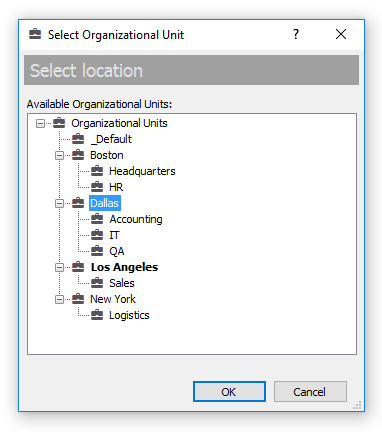 |
| Select the new location to move the unit to |
Select the Organizational Unit you want to move the unit to (a parent OU) and click the OK button. The unit and all its child containers (Organizational Units and User Accounts) will be moved to the new location.
 |
When you move an Organizational Unit, you do not change any settings related to the user permissions to view other users, send messages and files to them. You only change the OUs tree visible to you in the Management Console. |
Moving User Accounts
To move a User Account to another location in your OU tree, select and right-click it in the
User Management section of the tree and select the "
Move" menu item from the pop-up menu. You can also select the "
Account\Move..." item from the main menu or use the
button on the toolbar. It will open the
Select location dialog box.
 |
You can move multiple accounts at one time. Press Ctrl key to select several accounts on the Organizational Unit view. |
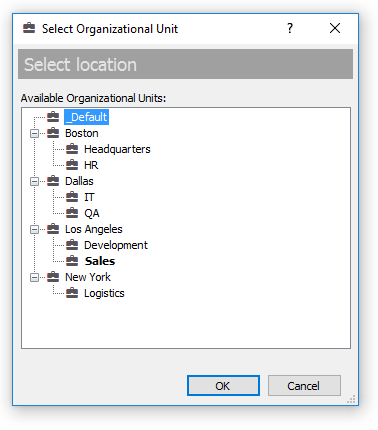 |
| Select the new OU to move the user account to |
After you select a new location for the user account, click the OK button to move it. The User Account will be placed to the new location.
|
When you move a user account, you change its permissions to view, send messages and files to other users because the permissions of the new OU are applied to the account. So if the "Automatically rebuild users' Contact Lists from a list of available users" checkbox on the Accounts tab of the options dialog is turned off, then other users may receive notifications that their Contact Lists have minor changes and some users are now available or moved. |



 Facebook page
 Follow Us on Twitter
 YouTube channel
 Read Our News and Blog