Receiving messages
All received messages are displayed in the the main window of the program. To pass on to previous or next messages you can use  Previous and
  Next buttons on the toolbar or use Ctrl+P and Ctrl+N hotkeys. To delete message use
  Delete button or the same key on the keyboard. In order to delete all messages you received press Shift+Delete keys.
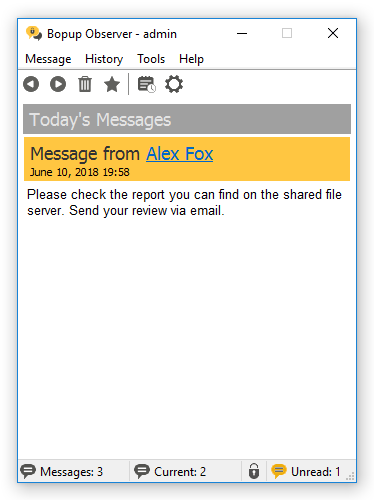 |
| How incoming message is displayed |
Number of the received messages, index of current message and number of the new (unread) messages are displayed in the status bar of the main window. Bopup Observer blinks icon in System Tray when a new message comes. You can also set up a sound file on receiving.
Offline messages
When you receive an offline message, i.e. a message that sent to you when you were offline and not availble on IM network, it is displayed with the following prefix:
"[This message was stored and forwarded to you by Bopup Communication Server. The message was actually sent on Month Day, Year HH:MM]"
where the Month Day, Year HH:MM is a date and time when the message was sent.
Reception mode
There are two modes of message reception available in Bopup Observer: Regular and Confirmation. The mode is managed on IM server and cannot be changed by user from the program.
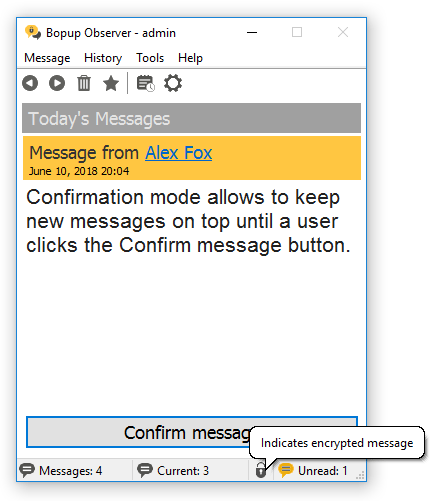 |
| Confirmation mode |
|
| Regular Mode |
In the Confirmation mode you have to click the
Confirm message button to be able to minimize the program or delete message. Otherwise Bopup Observer will be displayed on top (above all other windows on your Desktop).
The Regular mode is a normal mode of message reception and there are no any confirmation options in Bopup Observer.



 Facebook page
 Follow Us on Twitter
 YouTube channel
 Read Our News and Blog