

 |
 |
Getting Started |
|
|
User's Guide |
|
|
Setup |
|
|
First Start |
|
|
Interface |
|
 |
User interface |
|
|
All-In-One Chat |
|
|
Classic Messenger |
|
|
MyGroups |
|
|
Message and Transfer History |
|
|
View user's details |
|
|
Hotkeys |
|
|
Options |
|
|
About |


Bopup Messenger supports functionality as well in "All-In-One Chat" interface mode either using "Classic Messenger" look-and-feel mode with a possibility to have several conversation dialog to chat with multiple users at the same time. The interface mode is enabled on Interface mode tab of the Options dialog.
In this mode the messenger has only the single chat window which contains contacts, assigned and available messaging groups and functions to see conversation and type outgoing messages to currently selected recipients.
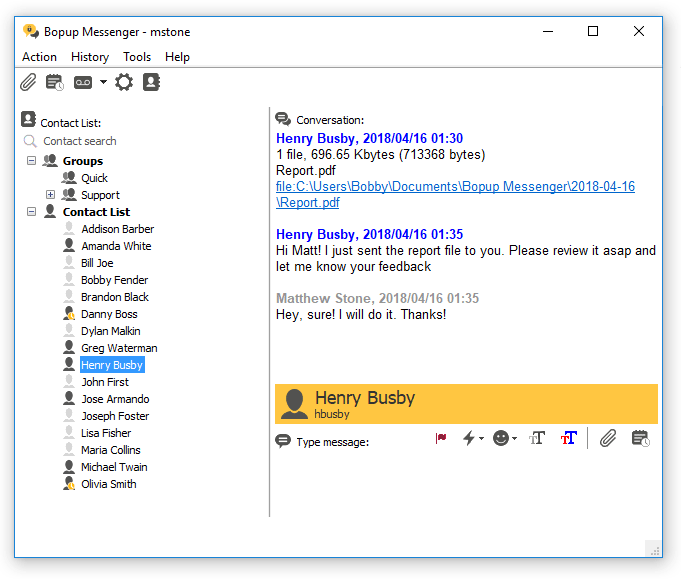 |
| "All-In-One Chat" interface mode shows only the single chat wndow |
An access to application functions is provided through main menu, toolbar or using popup menu called by right mouse click on Contact List.
The program toolbar contains the following functions you can quickly access.

From the left to the right:
In this interface mode the main window of the messenger contains two tabs: Today's Messages and My Contacts, and allows you to view messages that were received by your current online session and access your contacts within assigned Messaging Groups. In order to view, send and receive messages the messenger uses the sending dialog. The "Classic Messenger" mode allows to open multiple sending dialogs to view conversation and chat with different recipients.
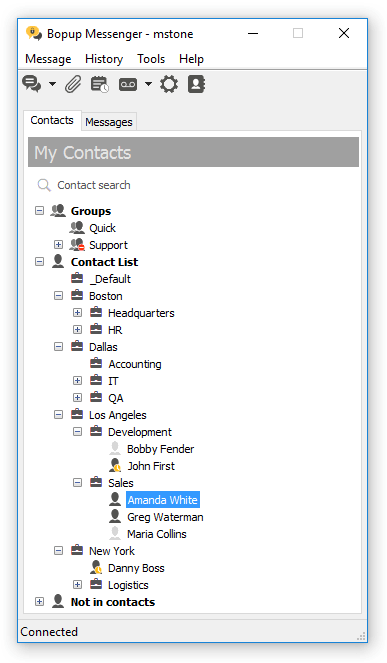 |
| My Contacts tab |
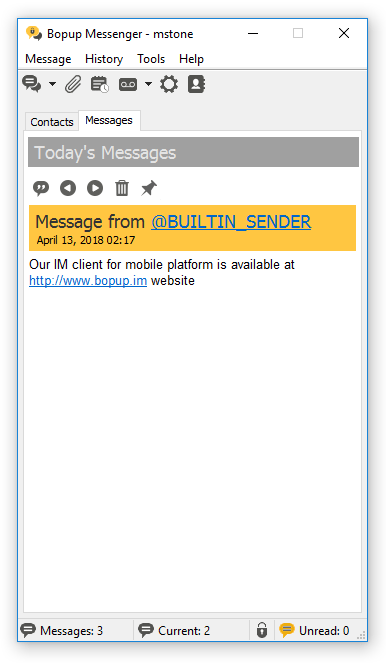 |
| Today's Messages tab |
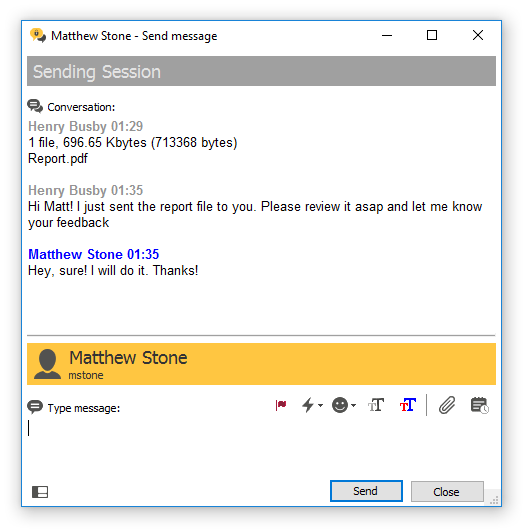 |
| Sending dialog contains conversation |
An access to application functions is available through main menu, toolbar in the main window or using popup menu called by right mouse click on Contact List.
Each incoming message on the Today's Messages tab is highlighted with a different color based on a message type, i.e. Personal, Group, News notification from a server or Urgent message. It is an easy way to attract an attention and see what type of message is received.
The program toolbar contains the following functions you can quickly access.

From the left to the right:
Urgent message indicates a priority of message, it can be Personal, Group and News message and is highlighted with red color. When urgent message is received Bopup Messenger automatically pops up and notifies user with a sound file even the appropriated settings disabled in the messenger by user.
You can use keyboard shortcuts (hotkeys) for many of the tasks you perform in Bopup Messenger to help increase your efficiency.
All users from your contacts in Contact List are displayed with a presence status icon. The following presence status are available:
 |
— Assigned messaging group |
 |
— Assigned group with no permission to send messages and files (managed on IM server) |
 |
— User is currently online |
 |
— User is currently in Away mode (Online) |
 |
— User is currently offline |
Type few letters in the edit box with the "Contact search" tip text above the users list in order to display only contacts whom first/last name and/or account starts from that symbols. An empty (by default) edit box shows full Contact List.
Bopup Messenger displays a good visible icon in system tray area  that changes it's color and blinks when a new message comes.


 Facebook page
 Follow Us on Twitter
 YouTube channel
 Read Our News and Blog