Set up a connection to the IM server
To be able to communicate with other users, receive personal, group, news messages and files and send that messages and transfers you need to specify IM server name. Usually it is a computer name or IP address which is accessible to you from your LAN or corporate network. If you do not know a name or address of your server, please contact your system or administrator or manager.
You can specify a server name within the Connection Setup Wizard. To run the wizard select the "Tools\Connection Setup Wizard..." from the main menu. This wizard automatically starts on your first startup of the program, or when the messenger cannot connect to IM server.
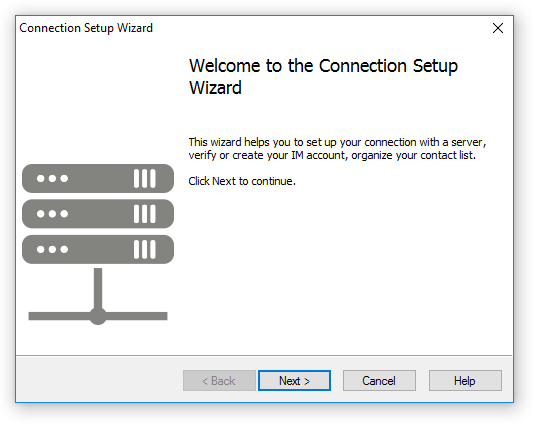 |
| Welcome page of the wizard |
Click Next to continue.
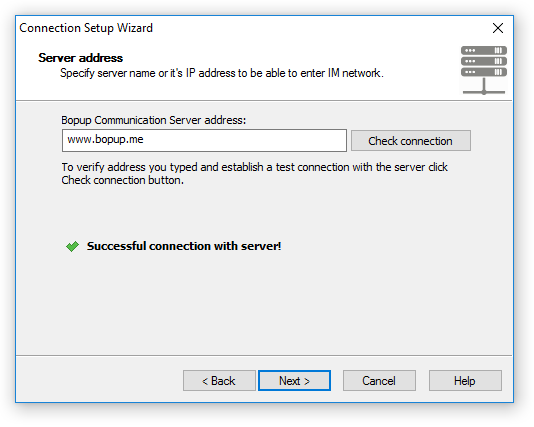 |
| Type a name or address of your IM server |
On the following page you need to specify name or IP address of your IM server. A name of server can be DNS name like computer name, for example "bopup.me" or IP address, like "198.51.100.255" string. To verify a connection with a server and it's availability click Test connection button. If a test connection is successful you will see the "Successful connection with server!" message on the same page of the wizard. Otherwise you will get the "Connection cannot be established. Server not found." message.
Click Next to save a server name in your preferences.
If your IM account is not found on a server but server's options allow users to create their own accounts from IM clients, you will see the next page of the Create My Account Wizard.



 Facebook page
 Follow Us on Twitter
 YouTube channel
 Read Our News and Blog